Every single app you use keeps temporary files on your device, including pictures, video snippets, login tokens, and UI preferences. This system, known as caching, prevents the software from downloading everything from scratch every time you launch it. The catch is that over time, these files pile up, become corrupted, or grow outdated. Consequently, your phone might lag, freeze, or heat up. Clearing the cache should always be your first troubleshooting step before resorting to a complete reinstall or a factory reset.
What clearing your app cache actually achieves day to day
Cache memory is never meant to be permanent storage. Android can purge it automatically if system space runs low. However, this built-in management often falls short. An excessively large or disorganized cache can trigger frequent crashes, slow down app startups, or prevent programs from opening altogether. Wiping the cache leaves your usernames, passwords, and game saves completely untouched. It is a risk-free procedure that simply resets an app’s temporary file directory.
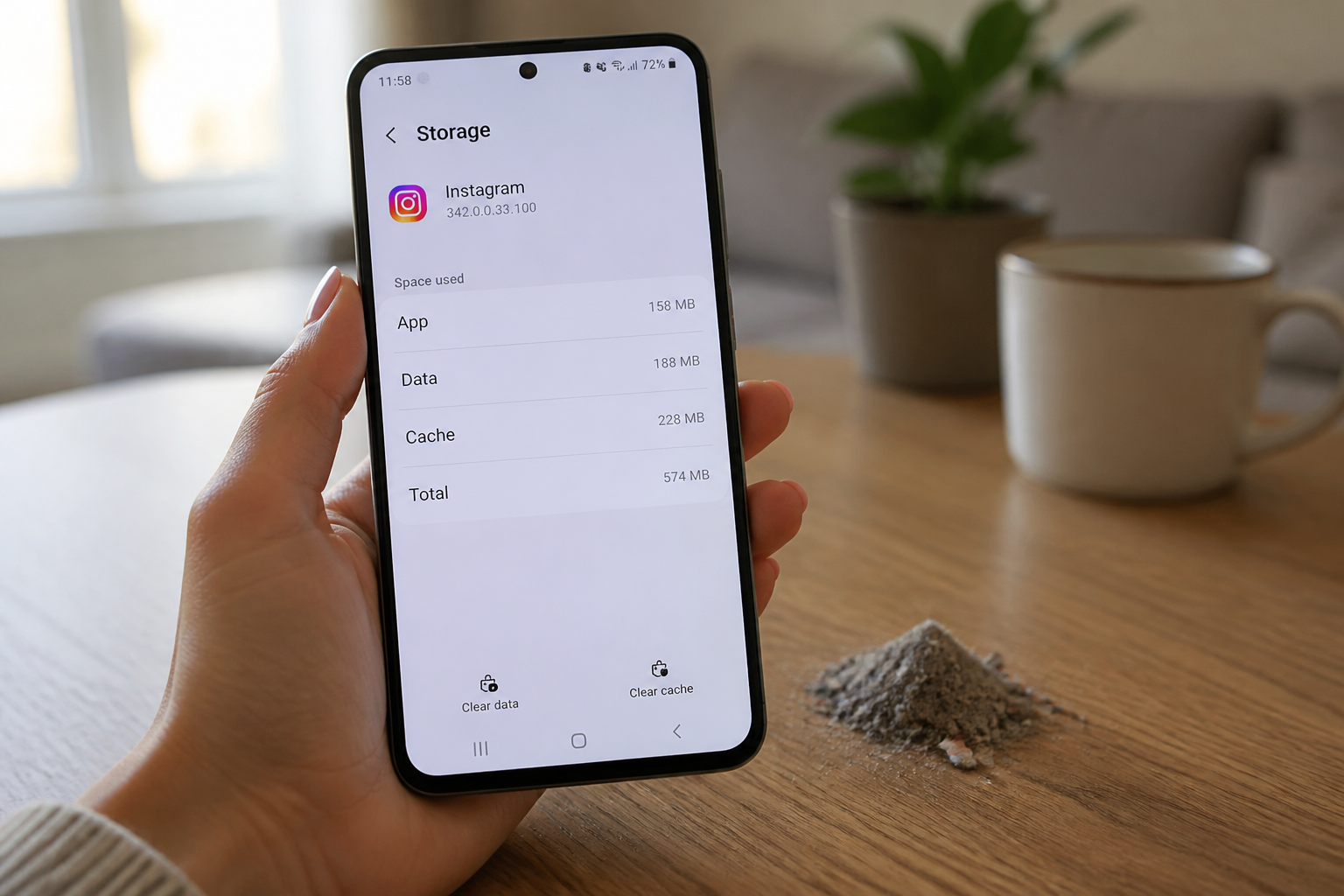
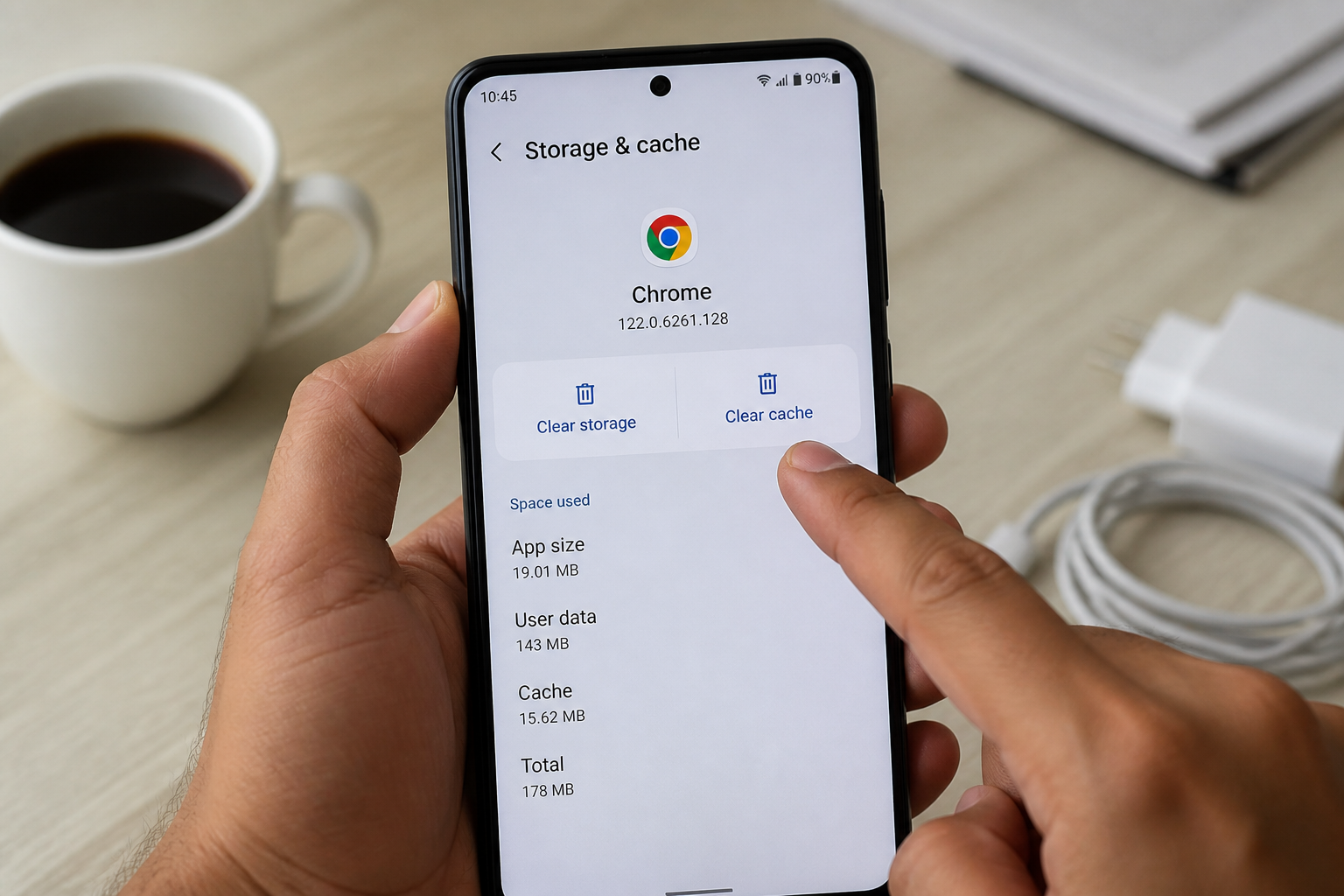
If the glitch persists after clearing the cache, you will need to take the next step: wiping the app storage. This action erases all user-specific data, including custom configurations, accounts, and preferences. The application will revert to the exact state it was in right after you downloaded it. You will have to sign back in, tweak your settings, and—in the case of video games—restore your progress from an online backup if available.
How to clear an Android app cache step by step
You can use two different methods depending on whether you prefer navigating through the system settings or using a shortcut on your home screen.
The Settings Menu Method
- Open the Settings app on your device.
- Head to Apps (or Apps & notifications, depending on your Android version).
- Locate and tap the target application.
- Tap on Storage (or Storage & cache).
- Select Clear cache.
The Quick Home Screen Shortcut
- Press and hold your finger on the app icon.
- Tap App info from the pop-up menu.
- Go to Storage, then tap Clear cache.
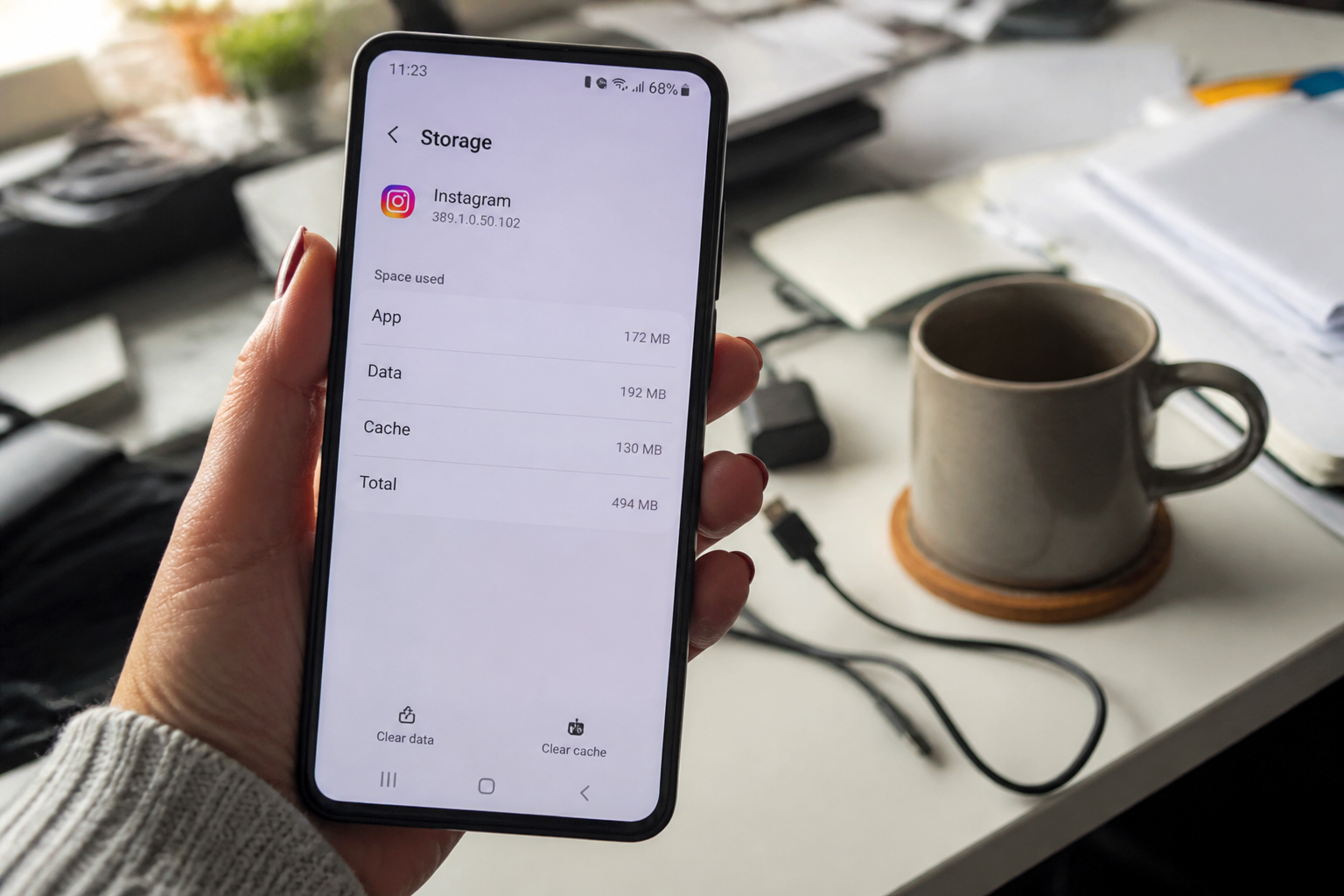
On Samsung smartphones, the navigation path is nearly identical: Settings > Apps, pick your app, then Storage > Clear cache. The only slight difference is that the Clear data button sits right beneath it, which can cause misclicks if you rush through the menus.
When clearing the cache is a waste of time
You shouldn’t purge your cache every single week for no reason. If your phone runs smoothly, apps launch promptly, and your battery lasts through the day, leave the cache alone. Wiping it unnecessarily forces every software package to rebuild its temporary files, which burns mobile data and temporarily stutters the first launch.
On the flip side, clean out your cache whenever:
- An application crashes or shuts down unexpectedly.
- A game or social media feed drags during loading screens.
- You spot graphical glitches (missing images, misaligned text).
- Your phone gets unusually warm without a clear cause.
- Your internal storage is almost full and you’ve already deleted unnecessary files.
Cache, data, and apps: matching the action to the goal
| Action | What gets deleted | What stays safe | When to use it |
|---|---|---|---|
| Clear cache | Temporary files (images, audio snippets, session preferences) | Usernames, passwords, settings, game progress | App is lagging or crashing |
| Clear data | Everything: cache + accounts + settings + local saves | Nothing (app reverts to factory state) | Clearing cache had no effect, persistent bugs |
| Uninstall / Reinstall | The entire application and its files | Nothing (unless cloud saves are linked to an account) | App refuses to open or remains frozen |
Clearing the cache only frees up short-term memory. To reclaim space on a choked device, wiping app data or uninstalling unused programs is far more effective.
Automatic cleaner apps: helpful tool or gimmick
Programs like CCleaner, Boost Cleaner, Clean Master, and AVG Cleaner promise to wipe caches with a single tap. They do work, but with distinct limitations. Their main perk is processing all apps simultaneously without manual selection. Their downside includes useless bloatware features (like RAM boosters or aggressive “junk” file removal) alongside annoying ads.
If you choose to use such utilities, make sure to disable aggressive options like “deep cleaning” or “residual file deletion,” which might wipe critical configuration data. Also, avoid using them as a background routine—running them occasionally is more than enough.
Three common mistakes to avoid when cleaning your Android cache
1. Confusing cache with data. Many users tap “Clear data” thinking they are simply emptying the cache. As a result, they lose their passwords and have to reconfigure everything. Always double-check that you are pressing “Clear cache” rather than “Clear storage.”
2. Purging every app’s cache out of habit. Certain utilities, such as GPS navigation software or music streaming players, rely on the cache to store offline maps or cached playlists. Clearing it forces them to download everything over again, wasting time and bandwidth.
3. Expecting massive free space gains. A typical app cache rarely exceeds a few hundred megabytes. On a phone with 64GB of storage or more, this hardly makes a dent. If your storage is full, target your photos, videos, and forgotten apps instead.
Clearing browser cache: a different beast entirely
Browser caches (Chrome, Firefox, Samsung Internet) operate differently from standard app caches by storing visited web pages to load them faster. Flushing them can resolve layout bugs (unresponsive pages or rejected web forms). However, doing so also wipes out your recent browsing history and active login tokens. Reserve this for troubleshooting rather than making it a routine chore.
To clear your browser cache on Android:
- Open Chrome and tap the three-dot menu in the top right corner.
- Go to History > Clear browsing data.
- Check only Cached images and files, leaving everything else unchecked if you want to preserve your history.
- Confirm the action.
Before wiping everything, audit your installed apps
A sluggish or overheating phone isn’t always the cache’s fault. Often, it’s just poorly optimized software running in the background or a buggy update. Before bulk-clearing caches, review your app drawer. Delete anything you haven’t touched in three months. Disable services that launch automatically on startup (like social networks, payment gateways, or weather tools). This step usually unlocks far more breathing room than a cache cleanup.
If your device remains slow after purging caches and removing dead weight, the root cause lies elsewhere: an aging battery, insufficient RAM, or an outdated Android version struggling with modern apps. In those scenarios, basic cleaning won’t cut it, and you may need to look into a hardware upgrade or a full factory reset.