
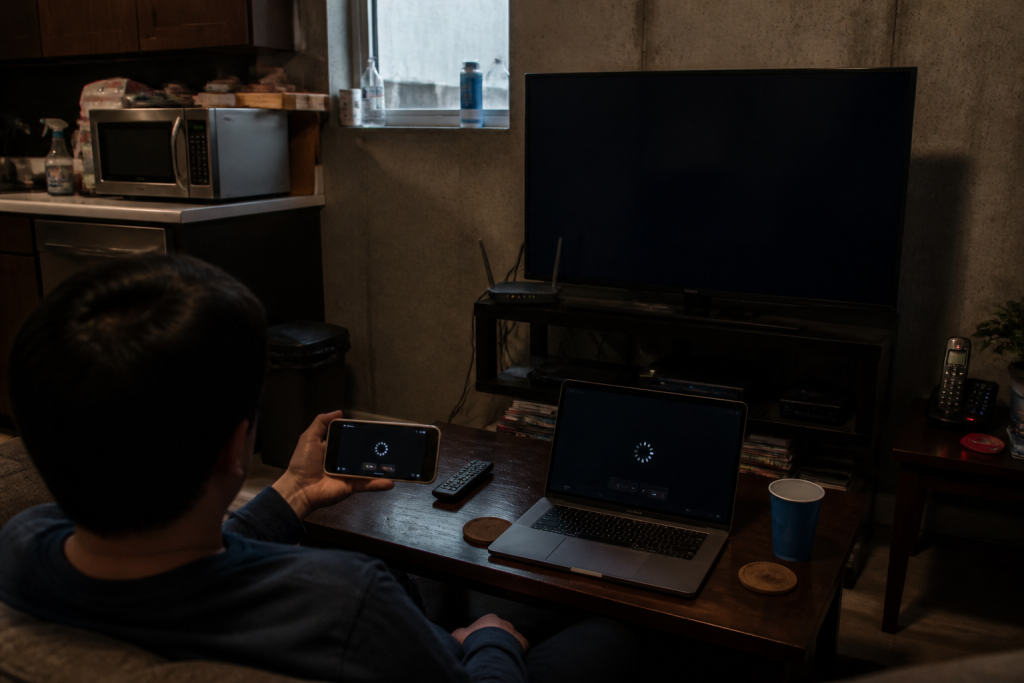
You launch a video, and it just buffers. You join a video call, and your image freezes. Your Wi-Fi connection feels like it’s crawling, even though you’re paying for a solid speed. These frustrating slowdowns almost always have a clear root cause: signal interference, poor router placement, network congestion, or outdated hardware. You don’t need to be a tech whiz to restore a stable signal. Here is how you can take back control of your home network.
How to Determine If the Issue Is Your Wi-Fi or Your Internet Service Provider
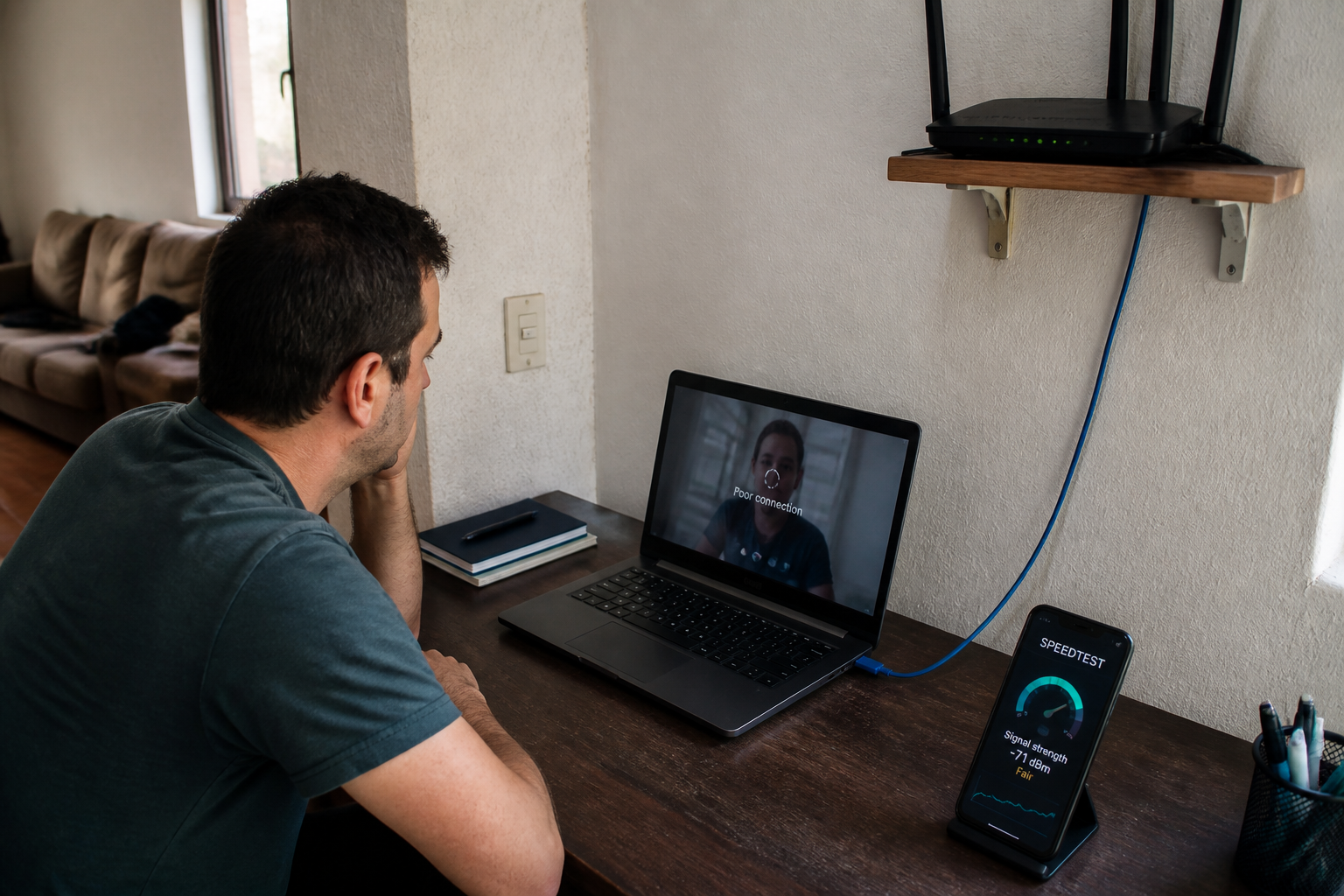
Before you start rearranging furniture or buying range extenders, you need to pinpoint the source of the slowdown. The most dependable method is to plug a computer straight into your router using an Ethernet cable. Next, run a speed test on a platform like Speedtest. If the resulting speed falls far short of what you pay for, the bottleneck likely stems from your actual internet connection (such as limited DSL speeds, a service outage, or overloaded lines). On the flip side, if your wired connection flies while your wireless crawls, your Wi-Fi network is definitely the culprit.

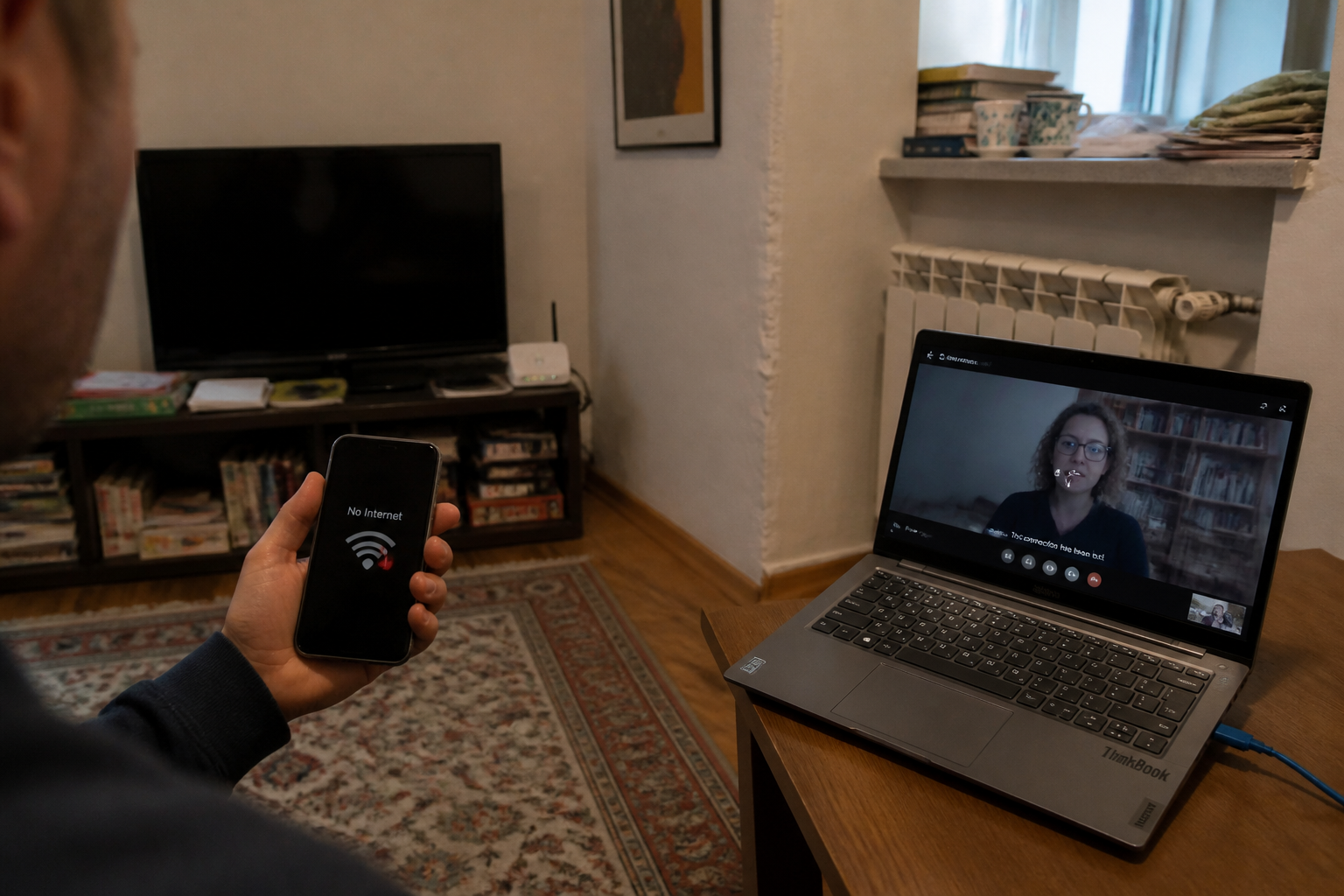
Another quick diagnostic step: check your signal strength in every room using your smartphone. Android users can look in their Wi-Fi settings, while iPhone users can download free utilities like Network Analyzer to view signal metrics in dBm. If your signal drops off a cliff moving from one room to the next, you are dealing with a coverage gap.
The Most Common Culprits Behind a Sluggish Wi-Fi
Poor Router Positioning
This is easily the most frequent mistake. Your router or gateway should be positioned up high, out in the open, and as centrally located as possible. Keep it off the floor, away from hidden corners behind furniture, out of cupboards, and clear of fish tanks or radiators. Dense masonry, concrete dividing walls, large mirrors, and household electronics (like microwaves, baby monitors, or cordless phones) can absorb or scatter your wireless waves. If your box sits in a far corner of the ground floor while you work upstairs, the signal has to punch through way too many obstacles.
Network Congestion
Every single gadget linked to your network—smartphones, laptops, tablets, smart TVs, wireless speakers, smart bulbs, and thermostats—grabs a slice of your available bandwidth. The more devices you hook up, the heavier the tax on your network. If your router has to juggle fifteen simultaneous connections simultaneously, overall performance takes a nosedive. Disconnect electronics you aren’t actively using: game consoles sitting in standby, voice assistants running round the clock, or an old phone gathering dust. Many modern routers let you view a complete list of connected hardware right inside their management dashboard.
Neighboring Interference
If you live in an apartment building or closely spaced townhomes, your neighbors’ wireless signals are likely squatting on the same frequencies you use. When everyone crowds onto identical channels, bandwidth gets sliced up, making slowdowns inevitable. Newer routers handle this automatically, but older hardware might require you to manually change your Wi-Fi channel within the admin settings. Stick to channels 1, 6, or 11 on the 2.4 GHz band, as they experience the least amount of overlap.
Outdated Hardware
Is your router several years old? It might not support modern wireless standards (like Wi-Fi 5, Wi-Fi 6, or Wi-Fi 6E). Similarly, ancient laptops or older smartphones can drag down performance for everyone. That’s because wireless connections always adapt to the slowest connected device. If you still use an iPhone 4 or a 2010 laptop, even a cutting-edge router will have its speeds throttled by those legacy gadgets. Also, remember to keep your router’s firmware updated; manufacturers frequently patch bugs and boost stability with new software.
Practical Ways to Boost Your Wi-Fi Performance
Switch Frequency Bands
Most routers broadcast across two separate bands: 2.4 GHz and 5 GHz. The 2.4 GHz band punches through walls more easily, but it constantly battles congestion (from microwaves, Bluetooth gear, and neighbors). The 5 GHz band delivers much faster speeds over a shorter range. For heavy-duty tasks like 4K streaming, online gaming, or video calls, move your devices over to the 5 GHz band. If your router supports it, enable “Smart Connect” or “band steering” to automatically steer your gadgets onto the most efficient frequency.
Deploy a Wi-Fi Extender or Powerline Adapter
If your home is large, spans multiple floors, or features thick walls, a single access point won’t cut it. You have two practical paths forward:
- The Wi-Fi Range Extender: It grabs your router’s signal and rebroadcasts it. Simple to set up, though it typically cuts theoretical speeds in half. This makes it a great choice for pushing coverage into a distant bedroom.
- The Powerline (PLC) Adapter: This leverages your home’s built-in electrical wiring to ferry network data. You plug one module near your router (hooked up via an Ethernet cable) and drop the second module into the room where you need coverage. Speeds remain much steadier than a wireless extender since powerline units bypass wireless interference entirely. It represents a dependable fix for upper floors or hard-to-reach zones.
Hardwire Stationary Devices with Ethernet
Whenever feasible, plug your data-heavy hardware—like desktop PCs, gaming consoles, and smart TV boxes—straight into the router using physical Ethernet cables. Doing so frees up valuable wireless bandwidth for your mobile gadgets while sidestepping Wi-Fi latency. A 10-meter Cat 6 cable costs very little and guarantees rock-solid speeds.
Minimize Interference Sources
Keep your router well away from other wave-emitting appliances, including microwaves, cordless phones, baby monitors, and Bluetooth speakers. If you use a baby monitor, look for models that avoid the crowded 2.4 GHz frequency entirely. Likewise, try not to place your router next to walls housing metal pipes or close to large mirrors, which can reflect and disrupt the signal.
When Should You Consider Upgrading Your Router or Switching to Fiber?
If your Wi-Fi remains sluggish after exhausting all these steps, the bottleneck likely stems from your gear or your service tier. A router older than 4 or 5 years simply cannot leverage modern wireless standards (like Wi-Fi 6 or Wi-Fi 6E), which offer vastly superior speeds and handle multiple busy devices much better. Internet providers frequently supply newer models to rent or buy.
On the infrastructure side, traditional ADSL tops out around 20 Mbps downstream, whereas fiber connections easily blow past 1 Gbps. If you’re still stuck on copper lines and fiber has arrived on your street, the speed jump will blow you away. Even with fiber, however, a poorly configured wireless setup can choke your actual speeds down to a few dozen megabits per second.
Running a wired speed test reveals the absolute truth about your internet service. If those speeds look great, your issue is 100% wireless.
Pitfalls to Avoid When Trying to Speed Up Your Wi-Fi
- Mindlessly chaining multiple extenders: Every extra repeater adds a relay hop and tanks your throughput. You’re much better off using a single powerline adapter or a well-placed extender than three overlapping units fighting each other.
- Choosing a Wi-Fi channel without checking for congestion: If you live in an apartment complex, channel 1 might already be completely swamped. Download a free Wi-Fi analyzer app on your smartphone to find and select the quietest channel available.
- Neglecting regular router reboots: A monthly power cycle clears out accumulated cache memory and clears up temporary bugs. If your network suddenly slows to a crawl, restarting your equipment should always be your first move.
How to Pick the Right Solution for Your Specific Situation
| Scenario | Recommended Fix |
|---|---|
| Slow Wi-Fi in one distant room | Wi-Fi range extender or powerline adapter |
| Poorly placed router (stashed in a corner or cupboard) | Relocate the router to an elevated, central spot |
| Too many active gadgets online | Disconnect unused devices, move to the 5 GHz band |
| Aging router (4+ years old) | Upgrade to modern hardware (Wi-Fi 6) |
| Wired connection is fast, wireless is terrible | Check for local interference, change channels |
| Outdated gadget dragging down the network | Update software or replace the device |
If you own a modern smartphone and an updated router, yet your signal still drops in certain rooms, a powerline adapter usually proves much more dependable than a wireless repeater. For homes under 80 square meters with standard walls, simply repositioning your router and switching over to 5 GHz is usually all it takes.
Finally, a dash of common sense: if your Wi-Fi dips specifically in the evenings when everyone is home, that’s entirely normal. The neighborhood network gets overloaded by peak simultaneous usage. In such cases, prioritize your essential hardware via Quality of Service (QoS) rules inside your router’s configuration panel, or invest in a beefier router designed to juggle multiple heavy data streams at once.
Don’t rush out to spend money on expensive gear before checking the basics: rebooting your box, repositioning your router, testing a wired connection, and switching channels. Nine times out of ten, a simple settings tweak or an inexpensive accessory under 50 dollars fixes the glitch. And if nothing seems to work, your provider might be experiencing a localized outage in your neighborhood. A quick call to customer support can save you from hunting down a fix that doesn’t exist at home.