
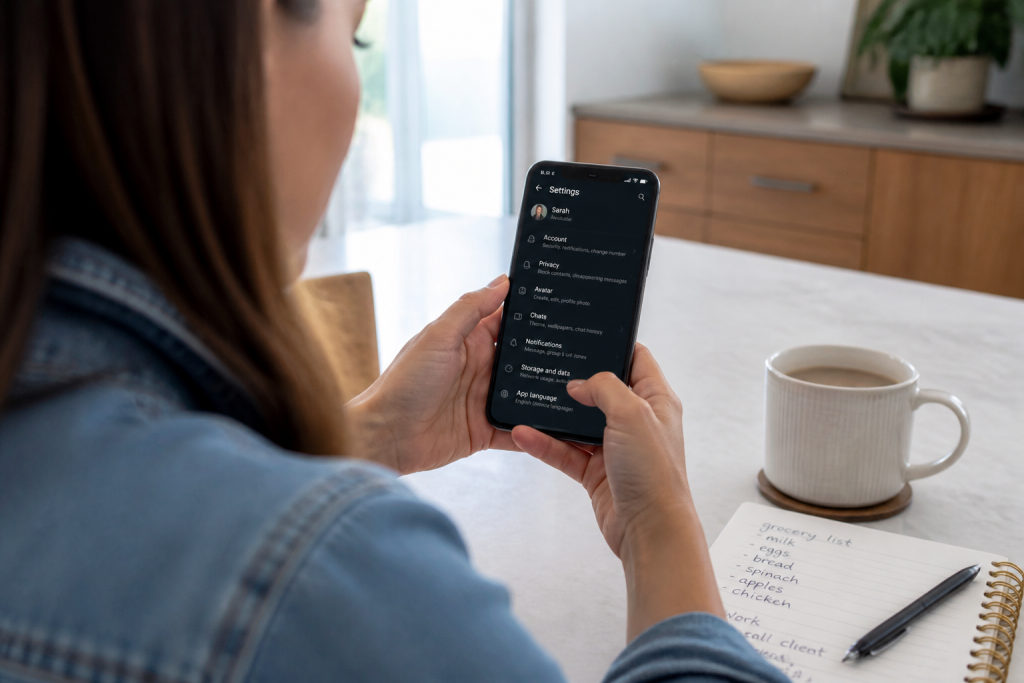
Misplacing a crucial WhatsApp exchange can easily trigger panic, especially when it involves important work details, cherished memories, a shared address, or a vital password. Yet, many Android users remain unaware that their chats can vanish automatically if they haven’t been backed up for over a year. Established back in November 2018 through an agreement between Google and WhatsApp, this policy purges inactive cloud archives stored on Google Drive. Unlike Apple’s iMessage, WhatsApp does not hold onto messages on its corporate servers. Once erased, retrieving them becomes an uphill battle.
How to Enable Automatic Backups on Android and iOS
WhatsApp relies on two main backup pathways: a local device backup and a cloud archive via Google Drive (for Android) or iCloud (for iPhone). Local copies generate automatically every night at 2:00 AM, but the system overwrites them after a rolling 7-day period. To safeguard your chat history over the long haul, establishing a consistent cloud backup schedule is essential.

For Android Users
- Launch WhatsApp, tap the three vertical dots in the top right corner, and open Settings.
- Head over to Chats, then select Chat backup.
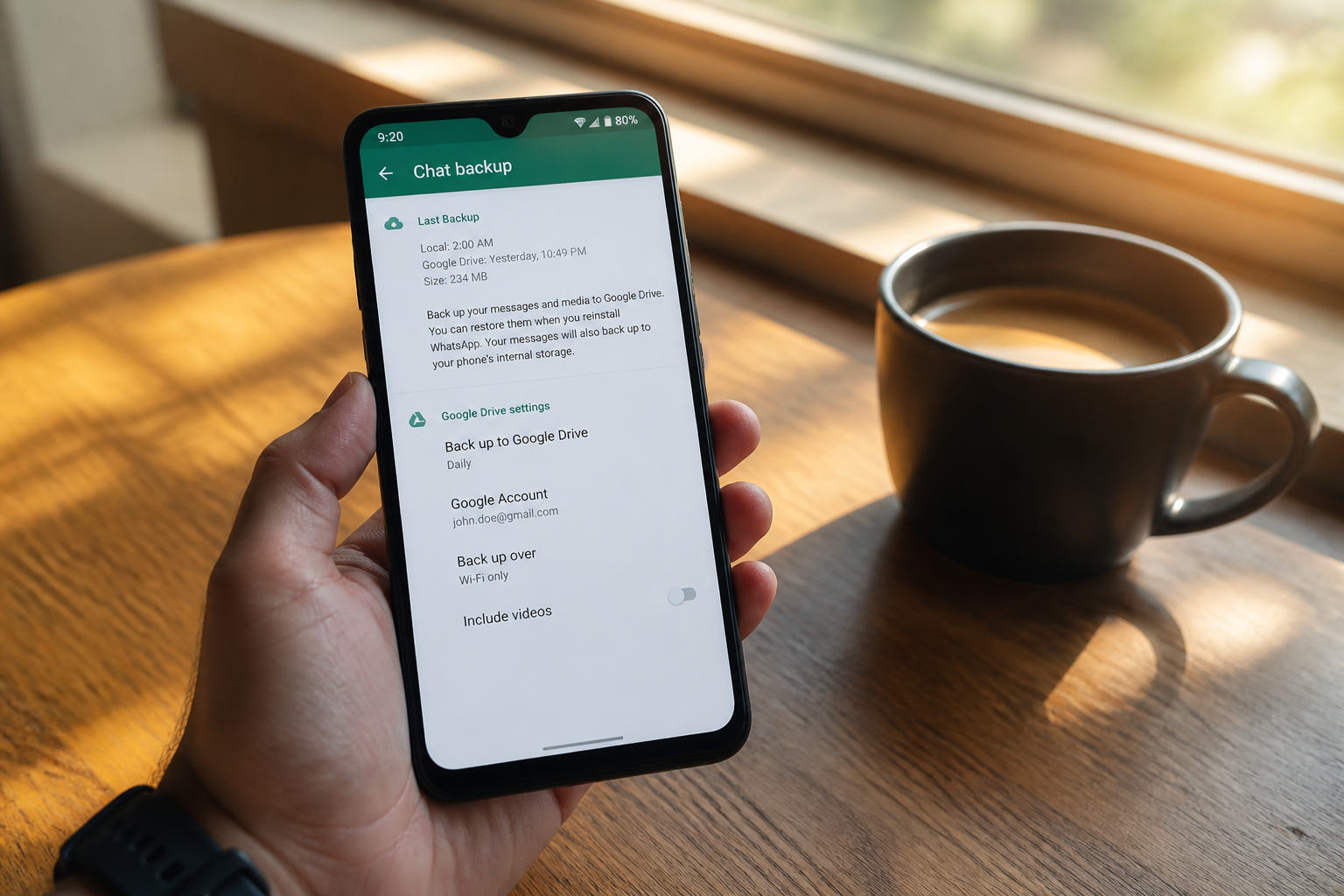
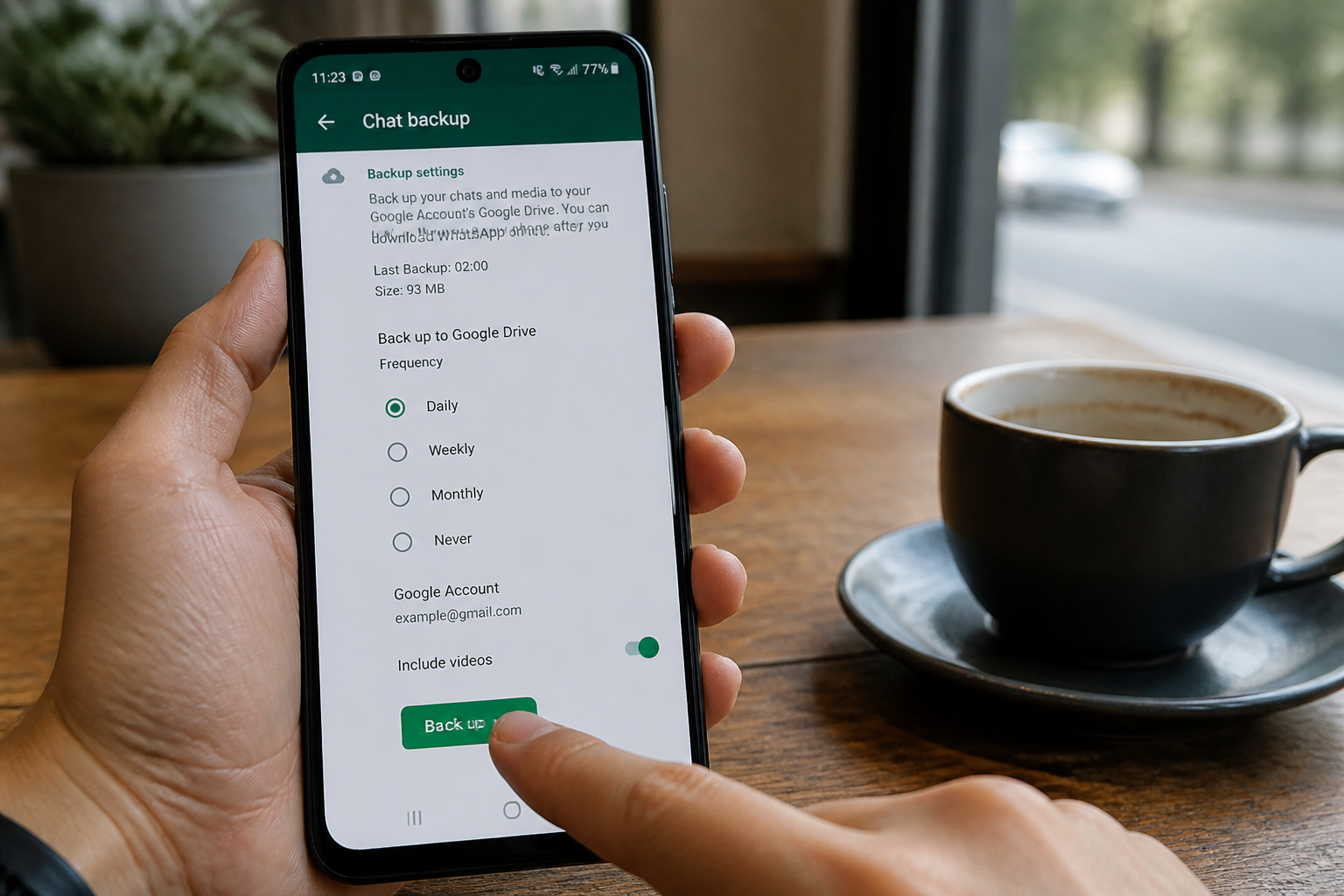
- Tap Back up to Google Drive and pick a backup frequency: daily, weekly, or monthly.
- Choose the specific Google account you wish to link. You can also opt to include videos, though keep in mind this will significantly increase the overall file size.
- Hit Back Up to execute your very first manual cloud save.
For iPhone Users
- Navigate to Settings > Chats > Chat Backup.
- Toggle on Auto Backup and determine your preferred frequency (daily, weekly, monthly).
- Verify that you have sufficient storage space available on iCloud and that your Apple ID is signed in properly.
- Tap Back Up Now to trigger an immediate snapshot of your data.
Crucial Reminder: On Android devices, if your chat history remains unbacked for more than 12 consecutive months, Google Drive will permanently delete those archives, leading to a total loss of your records.
What to Do If You Lost Messages Without a Backup
Missing a recent backup complicates things, though all hope isn’t necessarily lost. Because WhatsApp deletes messages from its servers right after delivery, removing them from your phone blocks direct restoration through the app itself. Nevertheless, alternative recovery paths do exist.
Checking for a Local Backup File
Before turning to more complex software solutions, check your smartphone for a lingering local backup file. On Android, WhatsApp generates a fresh database file inside the WhatsApp/Databases directory every day, holding onto it for a 7-day window before replacement.
- Uninstall the WhatsApp application completely from your handset.
- Download and reinstall it fresh from the Google Play Store.
- During the initial setup wizard, WhatsApp will detect the local file and prompt you to restore it. Accept this option.
Should the local backup prove too outdated or entirely absent, move on to the next techniques.
Deploying Third-Party Recovery Utilities
Specialized recovery suites like Dr.Fone, iMobie PhoneRescue, or Tenorshare UltData can scan your phone’s internal storage sectors to unearth fragments of deleted files. These programs comb through memory blocks normally invisible to everyday users, hunting for erased data that hasn’t yet been written over.
General Procedure:
- Install the chosen program onto your desktop computer.
- Link your smartphone using a proper USB cord.
- Initiate a deep scan of the device.
- Preview any recoverable records discovered (such as text fragments or media attachments).
- Choose the conversations you want back and export them safely to your PC.
Please note: these utility programs cannot promise a 100% success rate. Your chances hinge on how long ago the deletion occurred and your ongoing device usage—heavy activity increases the odds that the deleted sectors have already been overwritten.
Consulting a Hardware Specialist
If tinkering with DIY recovery software feels overwhelming, professional phone repair shops can sometimes assist. Experts possess advanced diagnostic rigs to read flash storage directly. Depending on the job’s complexity, this service generally runs between €50 and €150, with success remaining entirely unassured.
Key Mistakes to Avoid to Prevent Permanent Data Loss
Adopting a few simple habits will keep you safe from losing your entire messaging history.
- Never uninstall WhatsApp without running a backup first. Deleting the app sweeps away all local records, including automated safety nets.
- Do not swap phones without migrating your archives. When upgrading handsets, ensure you push your latest chat database to the cloud before factory resetting your old device.
- Never ignore cloud storage alerts. If Google Drive or iCloud warns you about low capacity, your scheduled WhatsApp backups will quietly fail.
- Avoid shady, unverified recovery apps. Numerous sketchy sites advertise free message retrieval while actually injecting malware. Stick exclusively to trusted, reputable developers.
Manual Backups: Your Ultimate Safety Net
Even with automated systems humming in the background, executing a manual backup right before major phone adjustments—such as upgrading devices, performing system resets, or installing major software updates—is a smart precaution. The process is straightforward and takes less than a minute.
For both Android and iOS: Settings > Chats > Chat Backup > Back Up. Do this immediately prior to swapping hardware or wiping your phone.
Key Takeaways to Ensure You Never Lose a Chat Again
WhatsApp refuses to store your personal chat threads on its infrastructure, leaving your cloud or local backups as your sole line of defense. On Android, letting Google Drive sit idle for over a year carries a heavy penalty if you neglect manual syncs. On iPhone, running out of iCloud storage can silently halt your automated backups.
The golden rule: set up daily automated syncing, periodically verify that it is running smoothly, and manually archive your data before any major device changes. If you’ve already misplaced your notes, try a 7-day local restore or employ a trusted recovery suite, keeping your expectations grounded. And if data recovery ultimately fails, treat it as a valuable lesson to never take cloud backups for granted again.